Audit punch list
What a CAB auditor would find if they walked in today. Every control is bucketed by how it would fail, and each finding comes with one prescriptive action button — no more guessing what to fix next.
Three buckets
- Will fail — the auditor will write this up as a non-conformity
- At risk — the auditor will probe further and may issue an observation
- Ready — evidence is in place and will pass the check
Why not a roadmap or to-do list?
Compliance tooling usually asks you to plan the work: sprints, backlogs, owners, deadlines. That only matters if you already know what to fix and how. Most teams don't — and real CAB audits fail not on missing plans but on missing, wrong, stale, or insufficiently-scoped evidence.
The punch list skips the planning layer and shows exactly what an auditor would flag today, grouped by why it fails, with a single prescriptive action per finding. Fix the finding and it moves to Ready on the next refresh. No Kanban, no status columns, no estimated completion dates — just the shortest path from "here" to audit-ready.
How to use it: work top-down. Start with Will fail KEY measures, click the action button, close the finding, move on. Re-open the punch list weekly — integrations and evidence expire, so the buckets shift over time. When Will fail hits zero and At risk is close to zero, you're ready to request the audit.
The overview
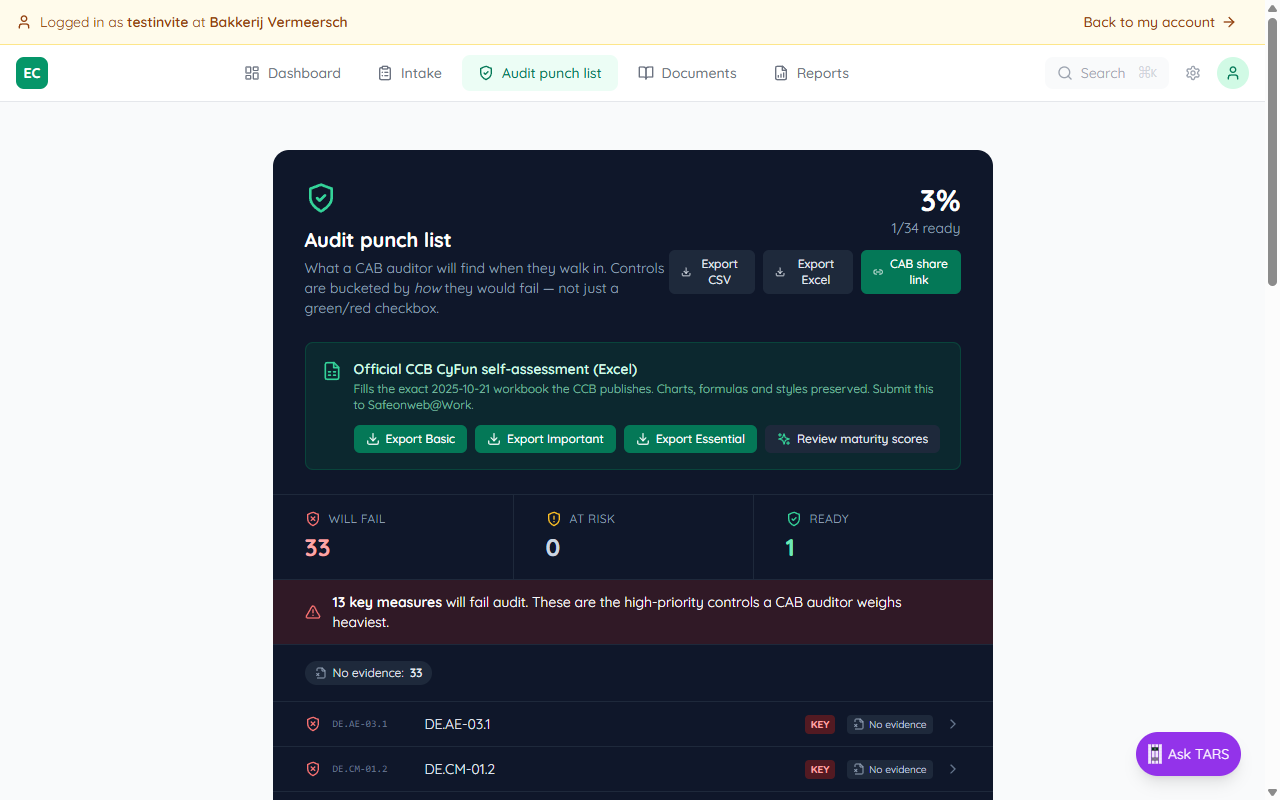
Open the Audit punch list tab. The header shows the overall readiness percentage (N / 34 ready) and three export actions: Export CSV for the full finding list, Export Excel for a branded .xlsx workbook, and CAB share link to send auditors a read-only view.
Under that, three bucket cards show the headline count — Will fail, At risk, Ready. Inside each bucket, controls are grouped by failure mode (why they would fail), not by control family.
Failure modes explained
Instead of a green/red checkbox, every finding is labelled with the reason it would fail. Each reason has one prescriptive action button — click and you land exactly where you need to fix it.
| Failure mode | What it means | Action button |
|---|---|---|
| No evidence | Nothing is attached to this control yet | Upload evidence |
| Wrong type | Evidence exists but is the wrong kind (e.g. policy where a config snapshot is required) | Fix artifact type |
| Insufficient scope | Evidence covers some entities but not the declared population | Confirm population scope |
| Stale | Evidence is past its validity window | Refresh evidence |
| Population gap | Integration coverage is lower than the declared estate (e.g. Graph sees 12 devices, you declared 83) | Reconcile integration |
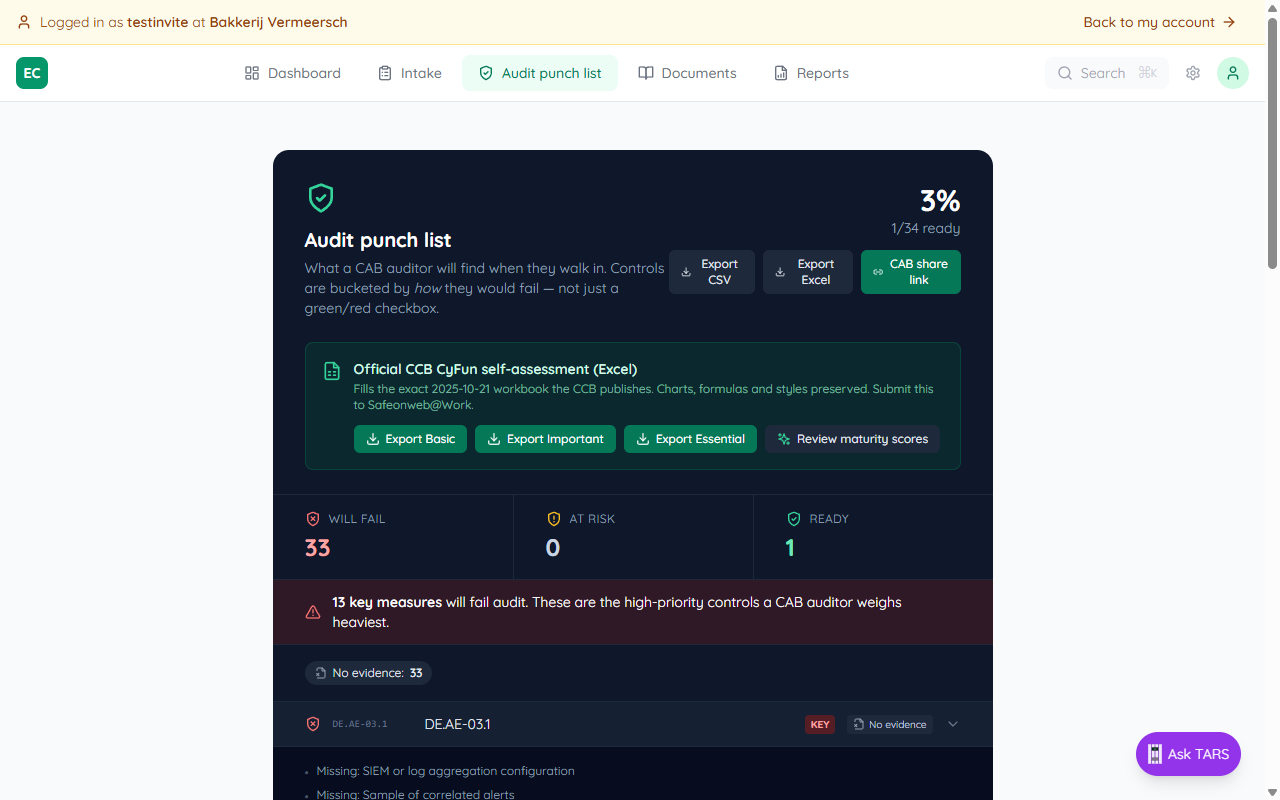
Click any finding to expand it. The expanded row lists the specific evidence that is missing, a short hint, and the action button.
Key measures
Controls tagged KEY are the ones a CAB auditor weighs heaviest. In CyFun, these are the measures linked to major risks (ransomware, data loss, unauthorised access). The Will-fail bucket calls these out at the top of the list — fix them first to move the needle.
Driven by your assessment
Every finding on the punch list comes from the Intake assessment. If you answer a control Partially or No — or leave it unanswered — it shows up here with the exact failure mode and the evidence that would close it. Change an answer in Intake and the punch list updates immediately.
Official CCB export — xlsx or zip
Below the buckets is a dedicated section titled Official CCB CyFun self-assessment (Excel). It fills the exact 2025-10-21 workbook the CCB publishes — charts, formulas and styles preserved — so the file is the one a CAB auditor signs off on.
Pick the tier (Export Basic, Export Important, Export Essential) that matches the client's CyFun obligation. Above the tier buttons is a checkbox:
Checkbox off — xlsx only
Workbook comments deep-link back into ECP. Use when the auditor has their own access.
Checkbox on — zip bundle
Comments rewrite to local paths (evidence/CCB-REF/…). xlsx, linked artifacts, and wiki pages (as markdown) bundled in one file.
For the full breakdown of what's inside the zip, see Exporting for your CAB auditor.
Other exports and auditor access
Export CSV produces a row per finding — control ID, bucket, failure mode, missing-evidence list, KEY flag — ready to paste into a tracker or attach to a management report.
Export Excel produces a native .xlsx workbook with two sheets: a Summary (totals per bucket + per failure mode) and a filterable Findings sheet with frozen headers. This is an ECP-native report, not the CCB submission format.
CAB share link generates a read-only URL you can send to an external auditor. The auditor sees the same punch list and findings but cannot change anything. Revoke it from Settings when the audit is done.
Before sending the link
Confirm your Declared estate in Settings first. Population gaps are only flagged when the platform knows how many devices, users, and so on you actually have.