Registers
A register is the running log of a compliance activity: risks identified, incidents handled, training delivered. Populated registers are proof to the auditor that the work is actually happening. Rows you add count toward Audit.
Why registers exist
CAB auditors don't want to read your policy. They want to see evidence you are doing what the policy says. A written incident-response policy on its own fails the audit; a populated incident register alongside it passes. Registers close that gap.
The thirteen registers
Open them from the Records menu. The same registers sit in the Documents tree under Registers. The risk register is separate: it lives under Risks → Register (see Risks).
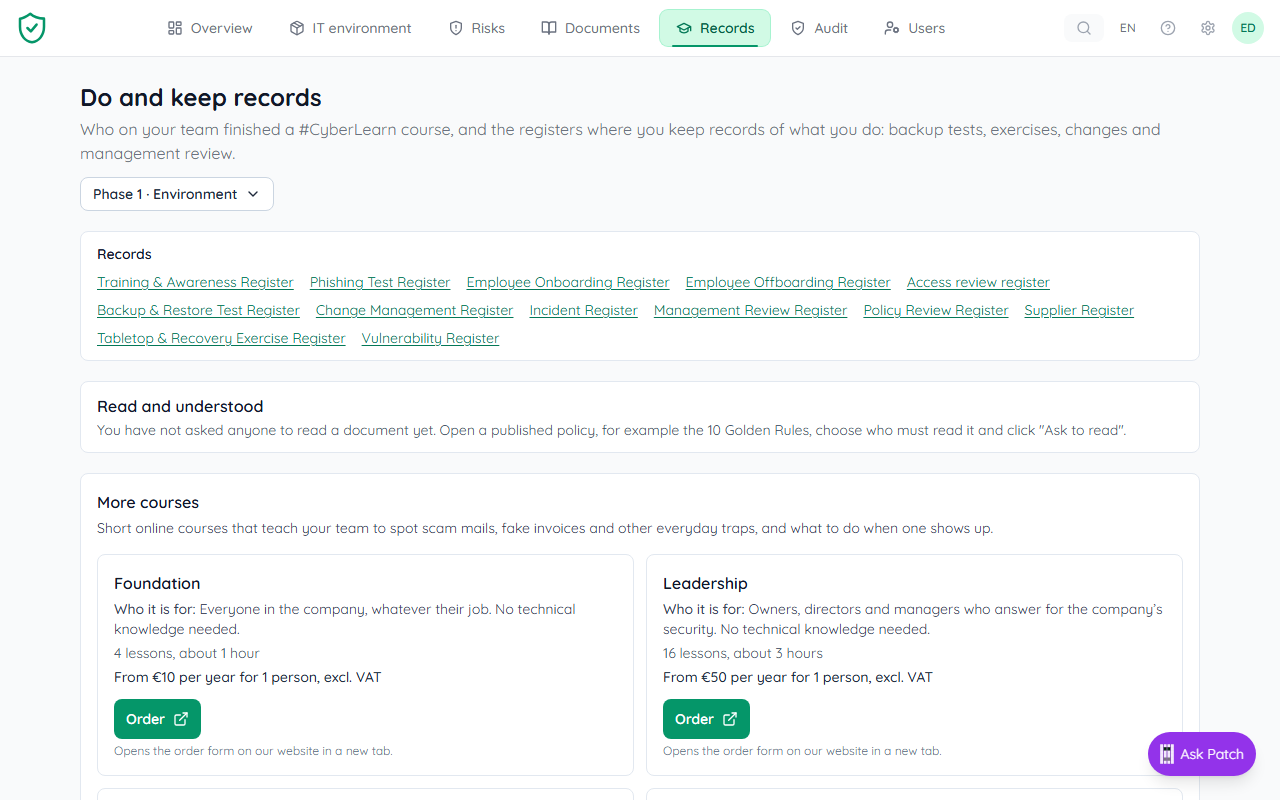
| Register | What it tracks |
|---|---|
| Training & Awareness | Awareness sessions and completion |
| Phishing Test | Simulated phishing campaigns with click rate and report rate |
| Employee Onboarding | One row per new hire |
| Employee Offboarding | One row per leaver |
| Access review | Periodic reviews of who has access to what |
| Backup & Restore Test | Restore drills, proving backups actually work |
| Change Management | Significant system changes with risk review |
| Incident | Security incidents with NIS2 24h / 72h / 1-month reporting dates |
| Management Review | Reviews of the security posture by management |
| Policy Review | Review cadence per policy, with approver and outcome |
| Supplier | Third parties with access to systems or data, review cadence |
| Tabletop & Recovery Exercise | IR drills, recovery rehearsals, lessons learned |
| Vulnerability | Vulnerabilities found in scans, patched status |
How a populated register becomes evidence
You don't have to separately attach a file to prove the work happened. The moment a register has one or more rows, the platform treats it as virtual evidence for every control it is mapped to:
- Add a row to the register (e.g. log one incident in Incident register).
- The register is linked to the controls it supports.
- The Audit recalculates: the matching controls move toward Audit-ready.
- Your readiness percentage goes up. No file upload needed.
Quality over quantity
Registers count because they show real activity. A one-row register may count, but an auditor will still ask "is that really all of them?" Fill them honestly.

Proposed rows from your connections
A connected tool can notice something that belongs in a register: a high-severity incident, an account that left, a new account. It never writes the row. It proposes one, and the proposal counts for nothing until a person confirms it on the register page or dismisses it.
- Home: open proposals show on your home page under what is waiting for you, one link per register.
- Incidents: open high or critical incident proposals are mailed at once, together in one mail, with one button to the register. By default at most 3 such mails in any 24 hours: the second comes at least 1 hour after the first, the third at least 4 hours after the second, and each one bundles everything new since. A new kind of threat can arrive sooner, but still counts toward the maximum. Owners and admins can change the maximum (1 to 10), both waits (15 minutes to 24 hours) and whether a new kind of threat may skip the wait under Settings > Notifications. Every mail tells you when the next one can come at the earliest, with the weekday when that is another day. After the last mail of the maximum it stays quiet until 24 hours after the first; threats that arrive meanwhile are sent as one summary when the quiet ends, during working hours. One reminder follows after 24 hours for those still open, never more. The same device and threat is mailed once per week.
- Who gets the mails: owners and admins, unless an owner or admin picks other active members under Settings, Notifications, Register proposals. Untick everyone to go back to the default.
- Weekly overview: every Monday owners and admins of an organisation with open proposals get one mail with the count per register and a link per item. No open proposals, no mail.
- Assistants: the same proposals appear in what an AI assistant answers to "what should we do next", each with a reason and a link.
Dismissed, confirmed and erased proposals are never mailed again.
MSP-facing reports
Two extra pages live alongside the registers but aren't registers themselves. They are management declarations the MSP delivers to the client:
- Statement of Applicability (
reports/statement-of-applicability): declares which controls apply, with justifications for any exclusions. Auditors read this first. - Quarterly Business Review (
reports/quarterly-business-review), the quarterly readout: posture evolution, highlights, open risks, next-quarter commitments. Copy the page into a PDF each quarter.