Monitoring client compliance
The Partner Dashboard gives you the portfolio view; the client switcher and Audit Readiness give you the per-client detail. Work between the two as your daily rhythm.
Partner Dashboard overview
The Partner Dashboard (at /app/partner, or just click the Dashboard tab when signed in as a partner) lists every client with a health bucket, progress, last-active timestamp, and your margin per client.
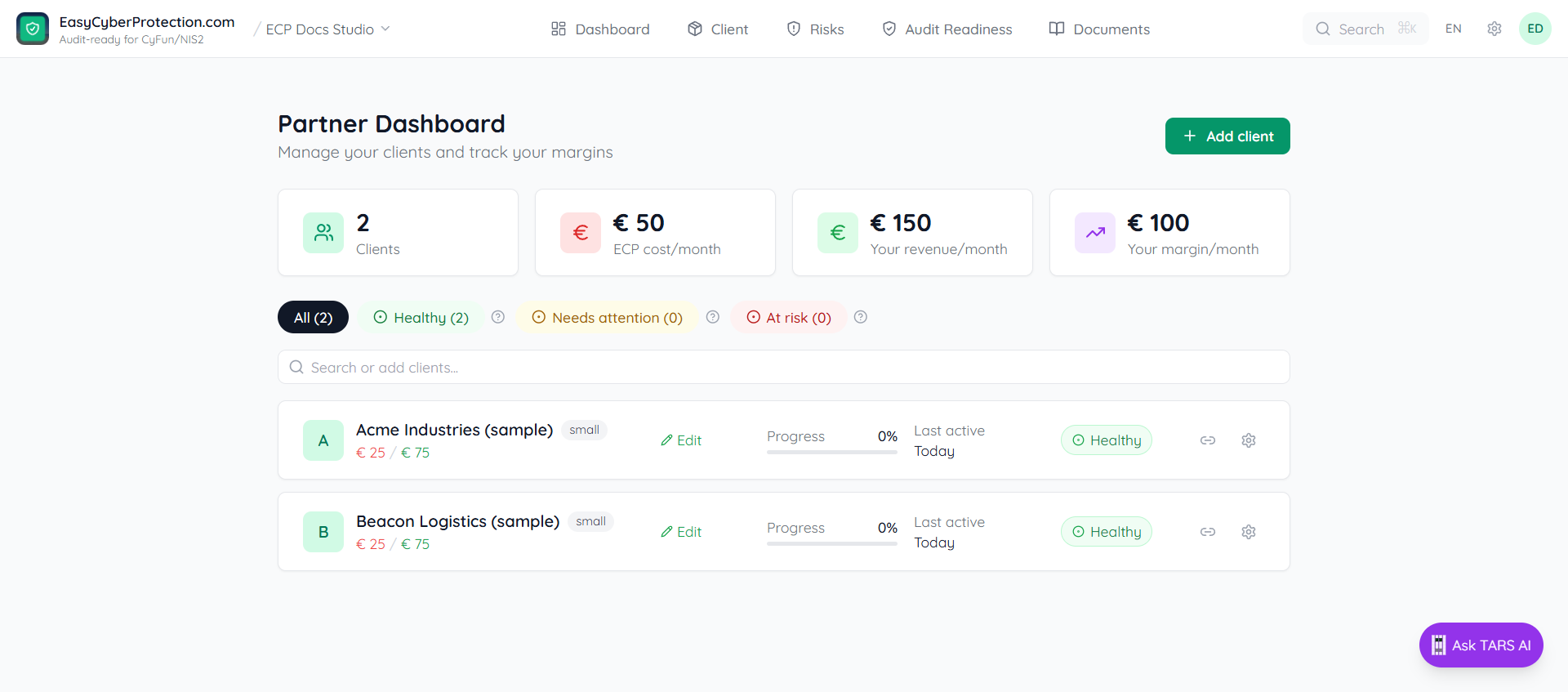
The four KPIs
- Clients — total in your portfolio
- ECP cost/month — what you pay ECP this month (your MSP tier base + per-client by client size)
- Your revenue/month — your billed total, with "N of M priced" showing how many you've set a price on
- Your margin/month — the gap. Red when negative (you still have clients without a price set)
Clients without a price show a Set price link next to the row. Click it to enter the price you charge the client — the dashboard updates instantly.
The three health buckets
Click any bucket toggle to filter the list:
- Healthy — active in the last 14 days
- Needs attention — 14–30 days without activity
- At risk — more than 30 days without activity
Jump into a client workspace
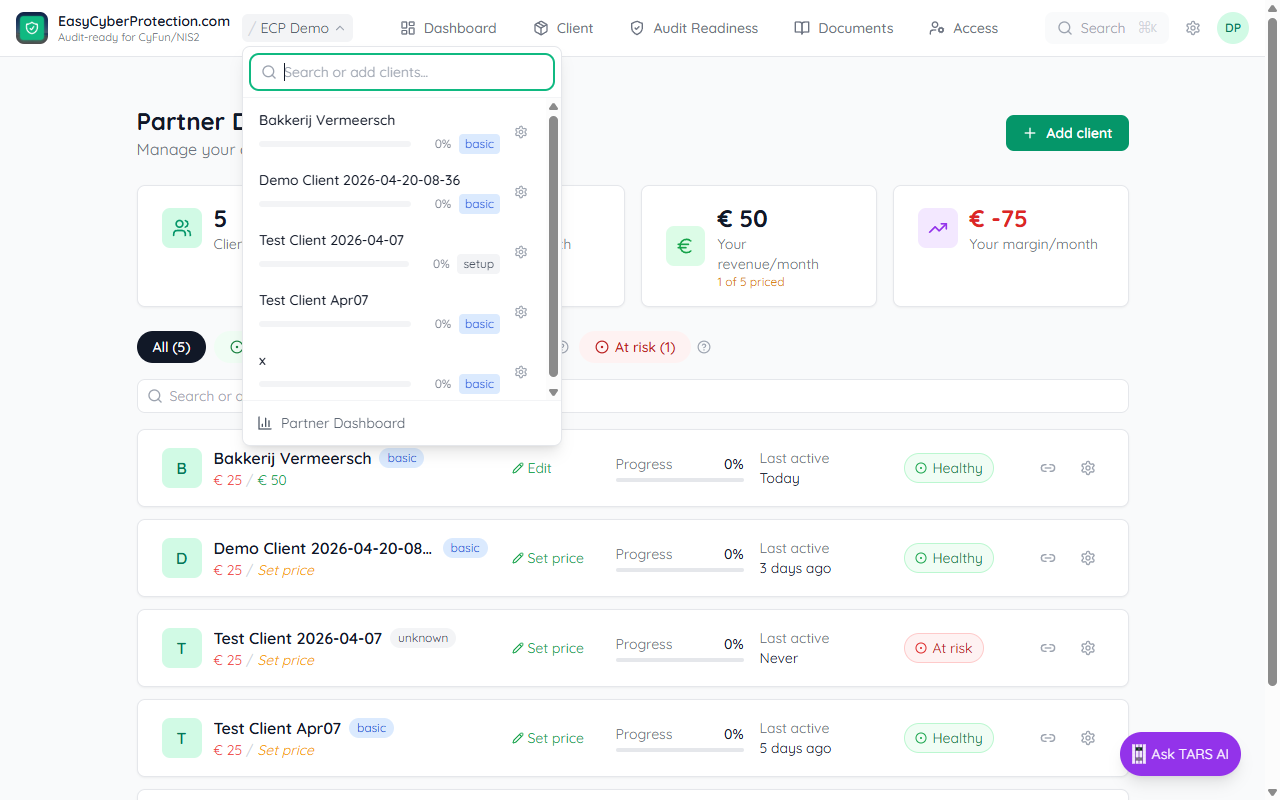
Click a client row to open the workspace, or use the client switcher popover in the top bar (next to the ECP logo) to move between clients without going back to the dashboard. A Partner Dashboard link inside the popover takes you back to the portfolio view.
Reading a client's Audit Readiness
Inside a client workspace, click the Audit Readiness tab. The page heading Control Health summarises the state: readiness percentage, Will fail / At risk / Ready buckets, and CCB 1–5 maturity averages for Documentation and Implementation.
Controls are grouped by CyFun function (Govern / Identify / Protect / Detect / Respond / Recover). The KEY badge flags high-weight controls the auditor will focus on. Toggle Show only key measures to trim the list to those.
Full guide: Audit Readiness.
Exporting for the CAB auditor
On the Audit Readiness tab the Official CCB CyFun self-assessment (Excel) section fills the v2026-02-20 workbook with the client's scores. Tick Full audit bundle to ship everything in one zip: the workbook, every wiki page, evidence binaries, and a manifest with SHA-256 hashes — that's the file you hand the CAB auditor.
The workbook fills the dedicated "Comments and/or additional information" column with a branded line — easycyberprotection.com · Audit-readiness evidence followed by an evidence link and the scoring footer — so the auditor sees at a glance which platform produced the file. The "Assessor comments" column right next to it is left empty for them.
For internal steering-committee updates, click Snapshot instead — it freezes the current state as a dated Compliance Report page under Documents → Reports.
Re-importing the auditor's notes
When the CAB returns the workbook with notes typed into the "Assessor comments" column, click Import auditor feedback next to the export button and pick the modified xlsx. Each non-empty note lands as a finding on the matching control's wiki page (auditor-feedback YAML block) and instantly surfaces on the Audit Readiness punch list with a new Auditor finding chip.
Auditor notes outrank the platform's predictive scoring — a control flagged by the auditor flips to Will fail regardless of how the evidence-driven heuristics rated it. That keeps the punch list honest: an open auditor note is a confirmed gap, not an opinion.
Multiple audit cycles accumulate cleanly: each import adds rows tagged with imported_at + source_file, so Q1 and Q2 notes both stay visible on the same control with their original timestamps. Re-uploading the same workbook is idempotent — identical notes are skipped.